Draw slides on the board, then present them full screen with a laser pointer, a pen and speaker notes. Everyone on the board sees what you show.
Make slides
At the top right of the board, change the mode from 'Editing' to 'Presenting'. The 'Slide' tool draws a slide frame over any part of the board. The 'Slides' panel lists the slides with their count. Each slide offers 'Jump to slide', 'Speaker notes', a background colour, 'Rename' and 'Delete slide'. 'Organize by board position' puts them in the order they lie on the board.
A deck added from a PowerPoint already has one slide per page.
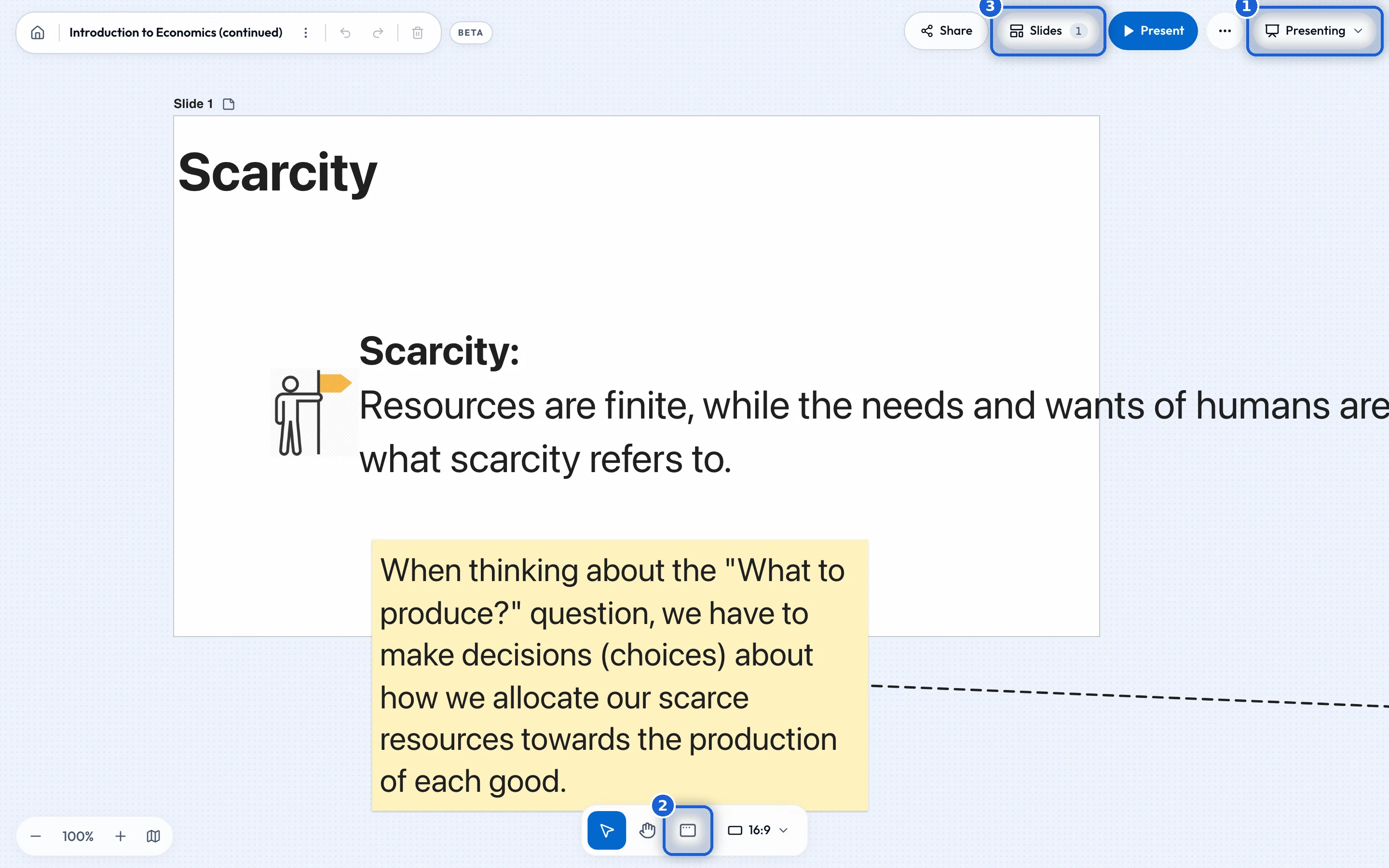
Present
Press 'Present'. If no slide is drawn yet, it says 'Draw a slide first'. Only the board’s owner can start. The menu next to 'Present' offers 'Enter fullscreen', on by default, and 'Let guests view slide notes'.

While presenting
A 'Presenting' pill shows at the top. The arrow keys, Page Up and Page Down, Space, Home and End move between slides. Escape stops. G opens the slide overview and N the speaker notes. 'Go to canvas' leaves the slides for the board, and 'Go to slide' goes back.
The toolbar offers a pointer (V), a laser pointer (L), a pen (P), a highlighter (K), an eraser for your own marks (E), colours, and 'Clear'.
Who sees it
Everyone who has the board open sees that you are presenting and follows the slide you show. When you stop, the board asks whether to keep the marks you drew while presenting.