A quiz can be written for you from the syllabus, or by you question by question. You read it, start it, and the results come back for every question.
Where to start
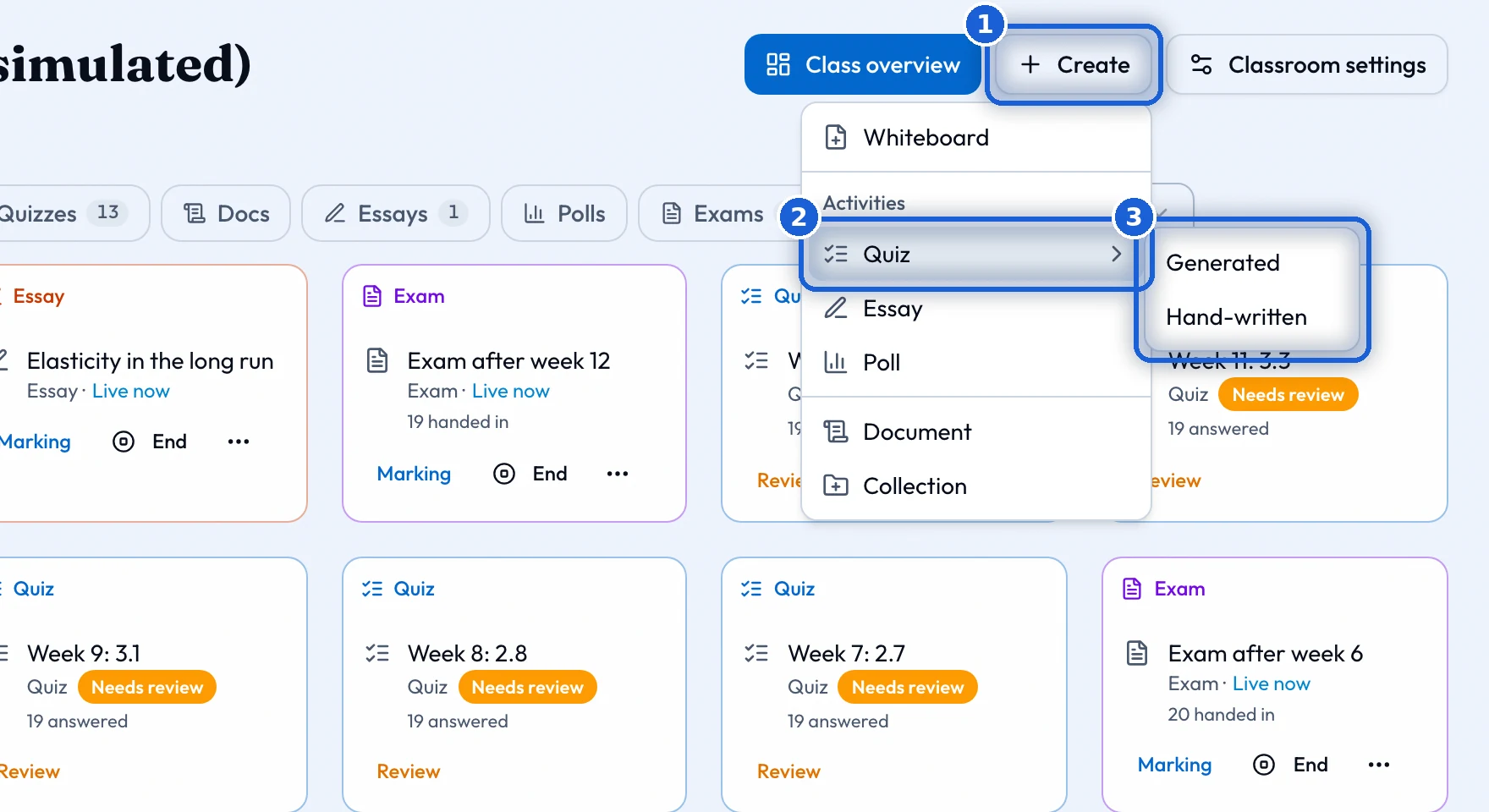
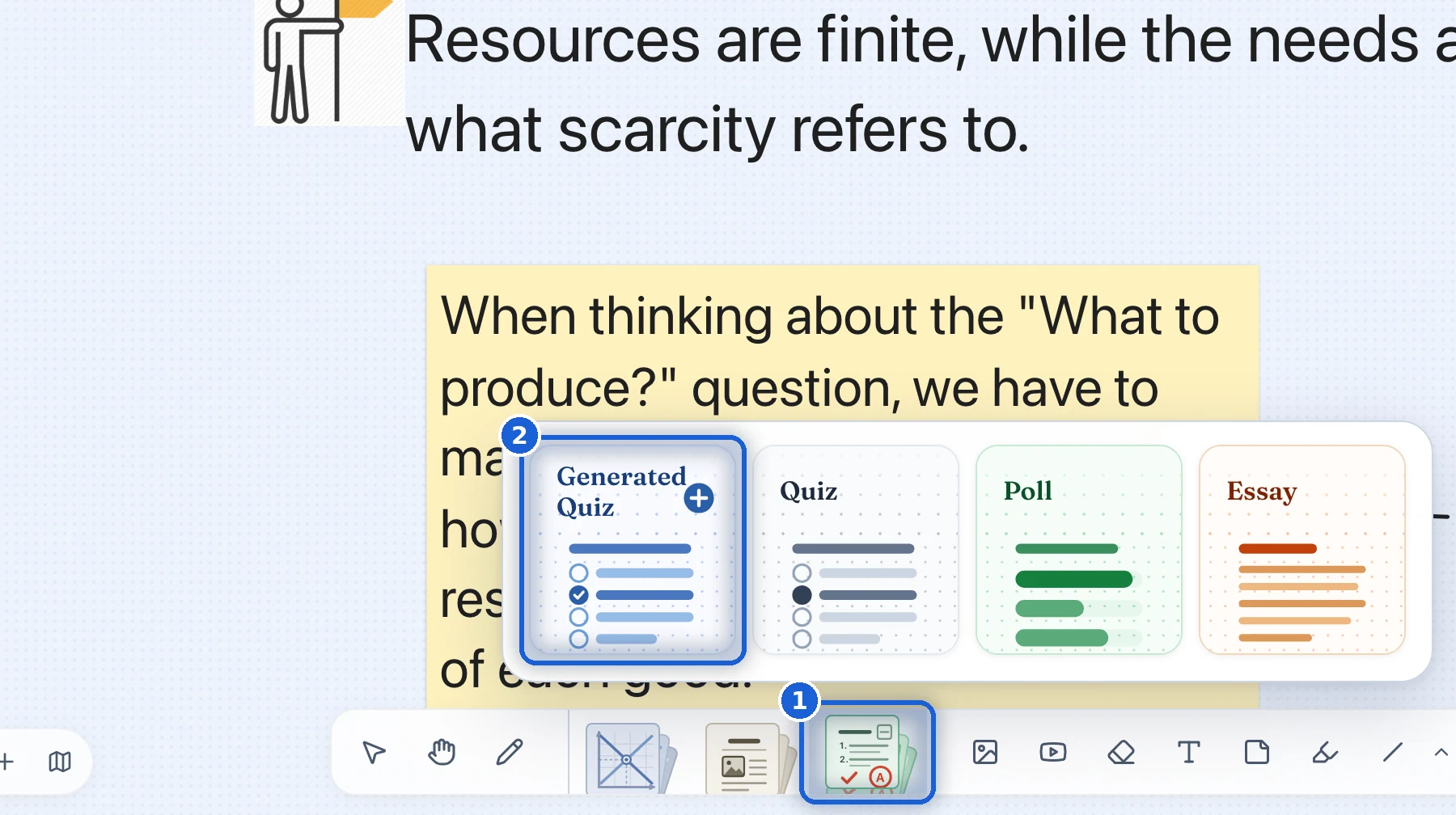
You can start a quiz from two places. In the classroom, press 'Create', then 'Quiz', then 'Generated' or 'Hand-written'. On a whiteboard, press the 'Activities' tool in the toolbar at the bottom of the board, then the 'Generated Quiz' card. A quiz made from a board can be placed on that board.
A generated quiz is written from the syllabus, using the topics you choose. It comes to you as a draft to read first. A hand-written quiz is yours question by question, with the same settings.
A generated quiz
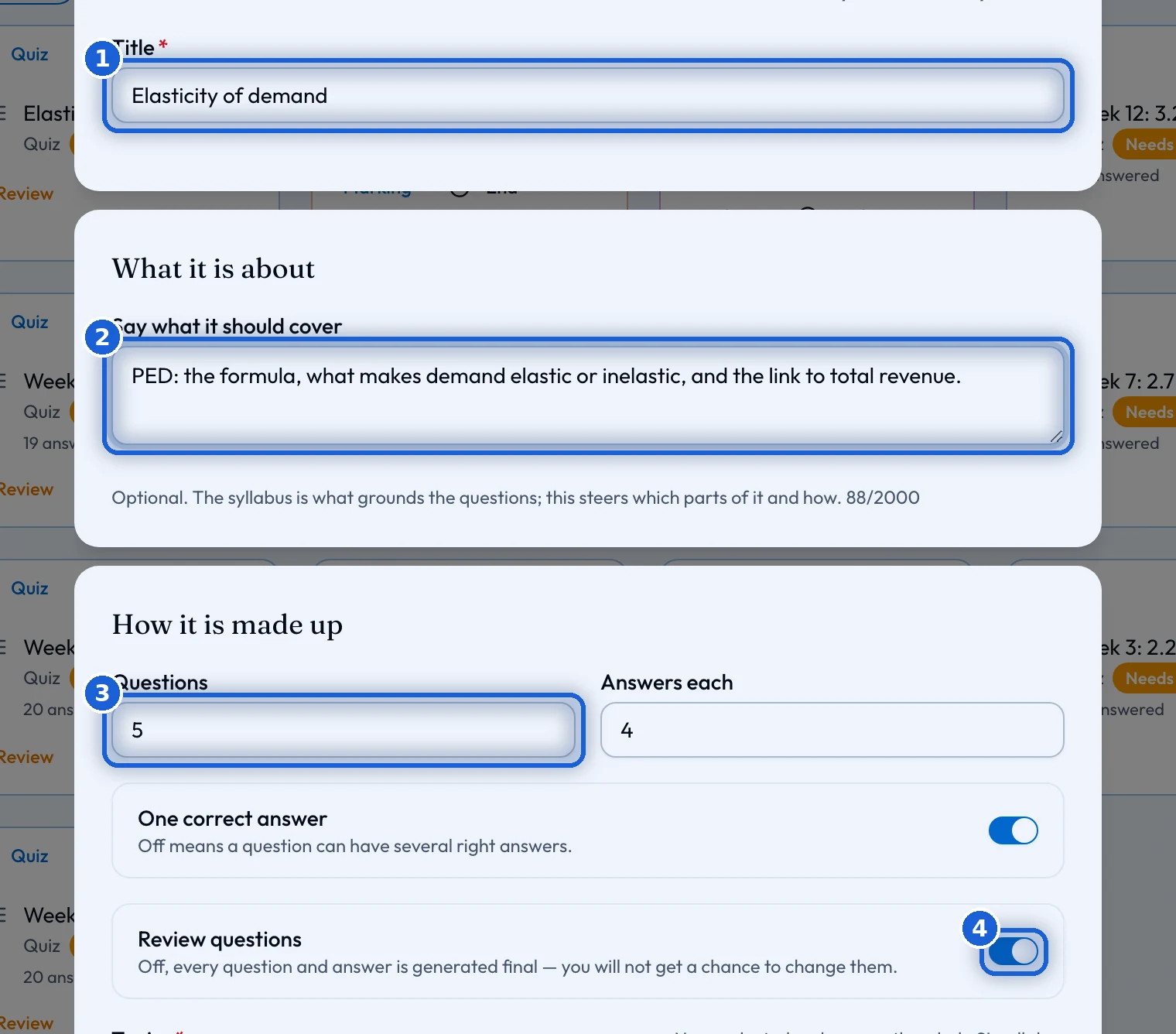
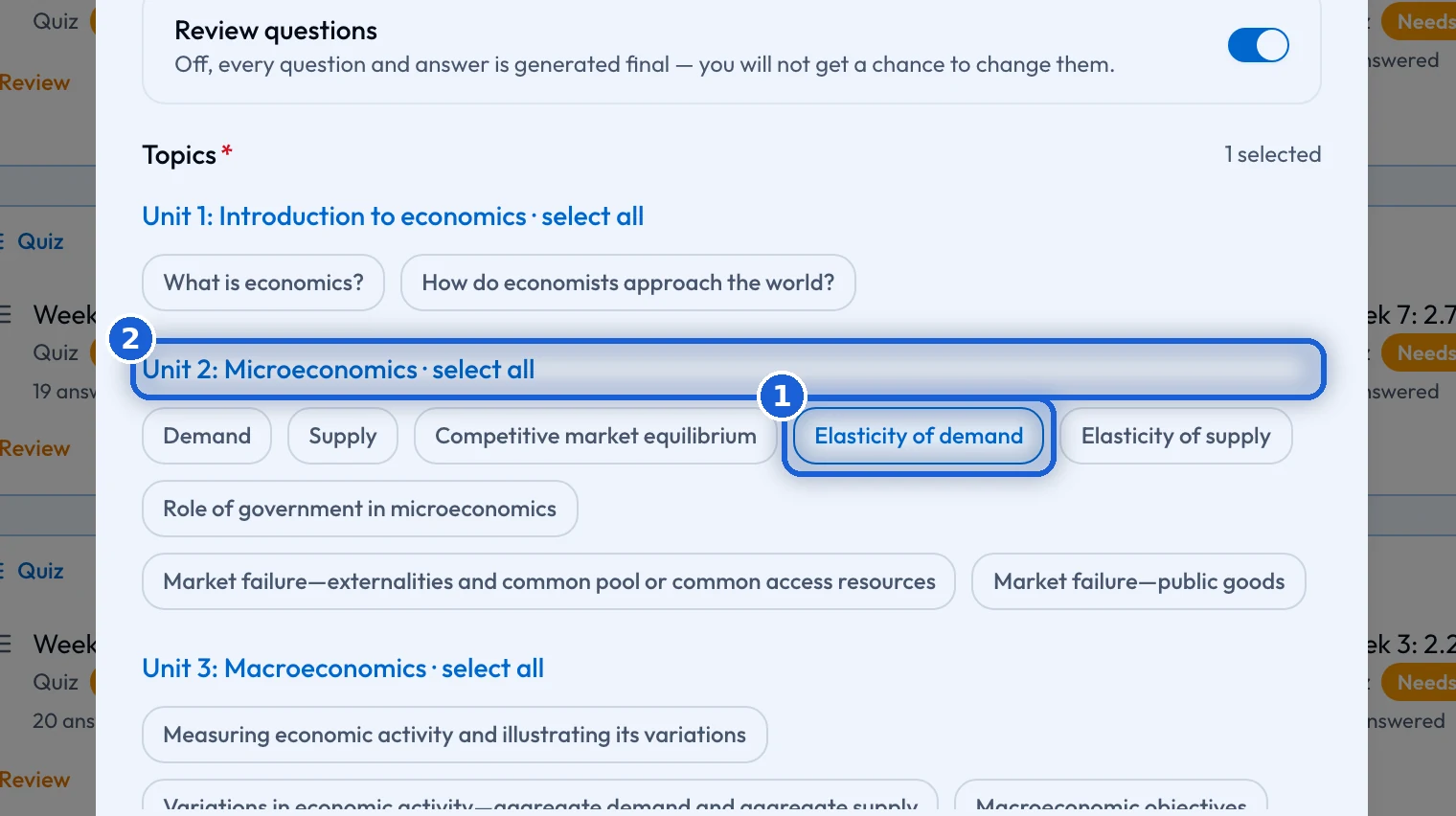
Give the quiz a title. Under 'Say what it should cover' you can tell it what to focus on. This is optional. The questions always come from the syllabus. Under 'How it is made up', choose how many questions, how many answers each question has, whether every question has one correct answer, and whether you want to read the questions before students can see them ('Review questions'). Then choose the topics. If you choose none, the whole syllabus is used.
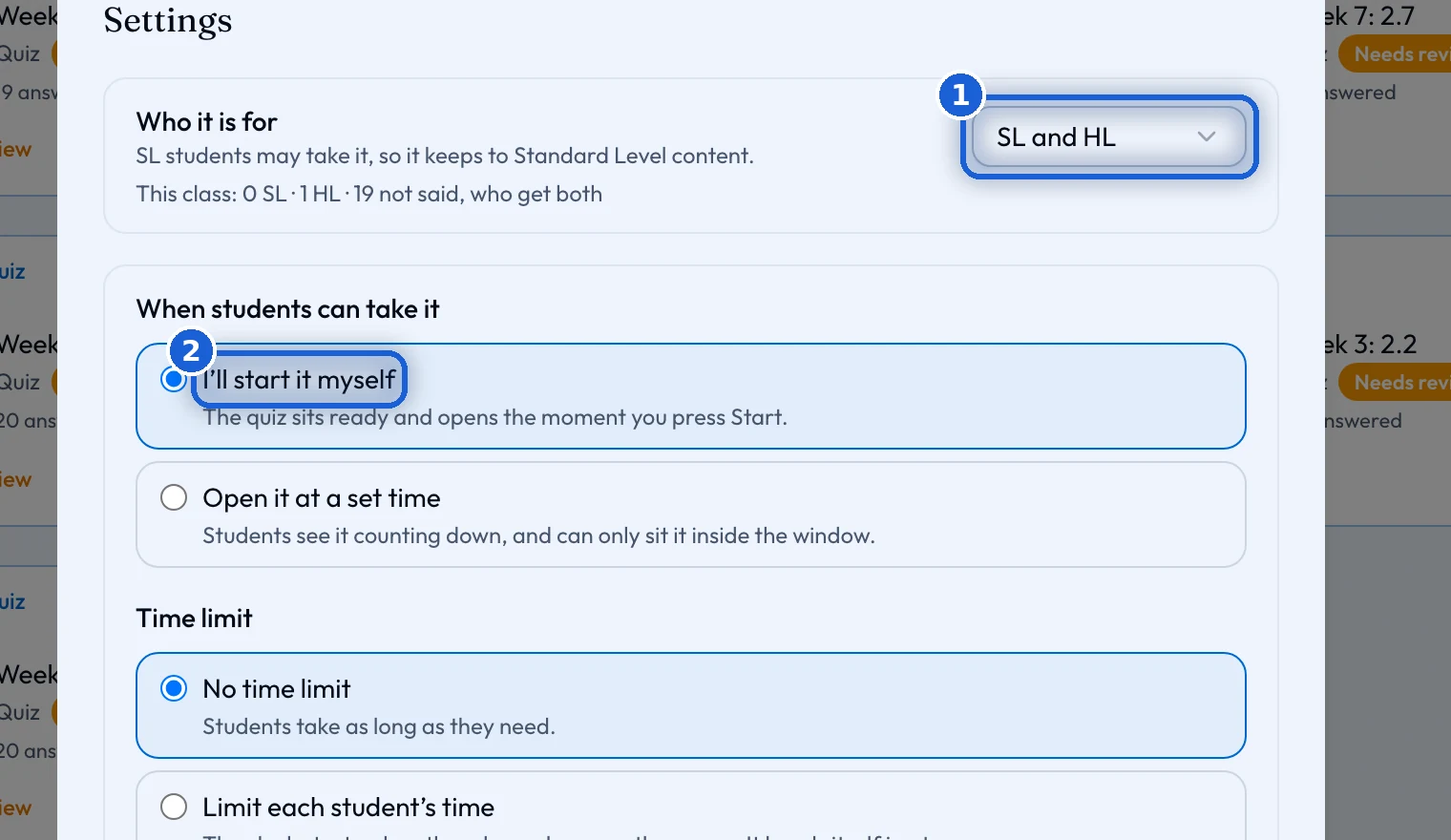
Under 'Settings', choose who the quiz is for ('Who it is for': SL and HL, SL only, or HL only), when students can take it, whether there is a time limit, how many attempts they get, and when they see their results. The bottom of the dialog says what the quiz costs before you press 'Create'.
Read it through
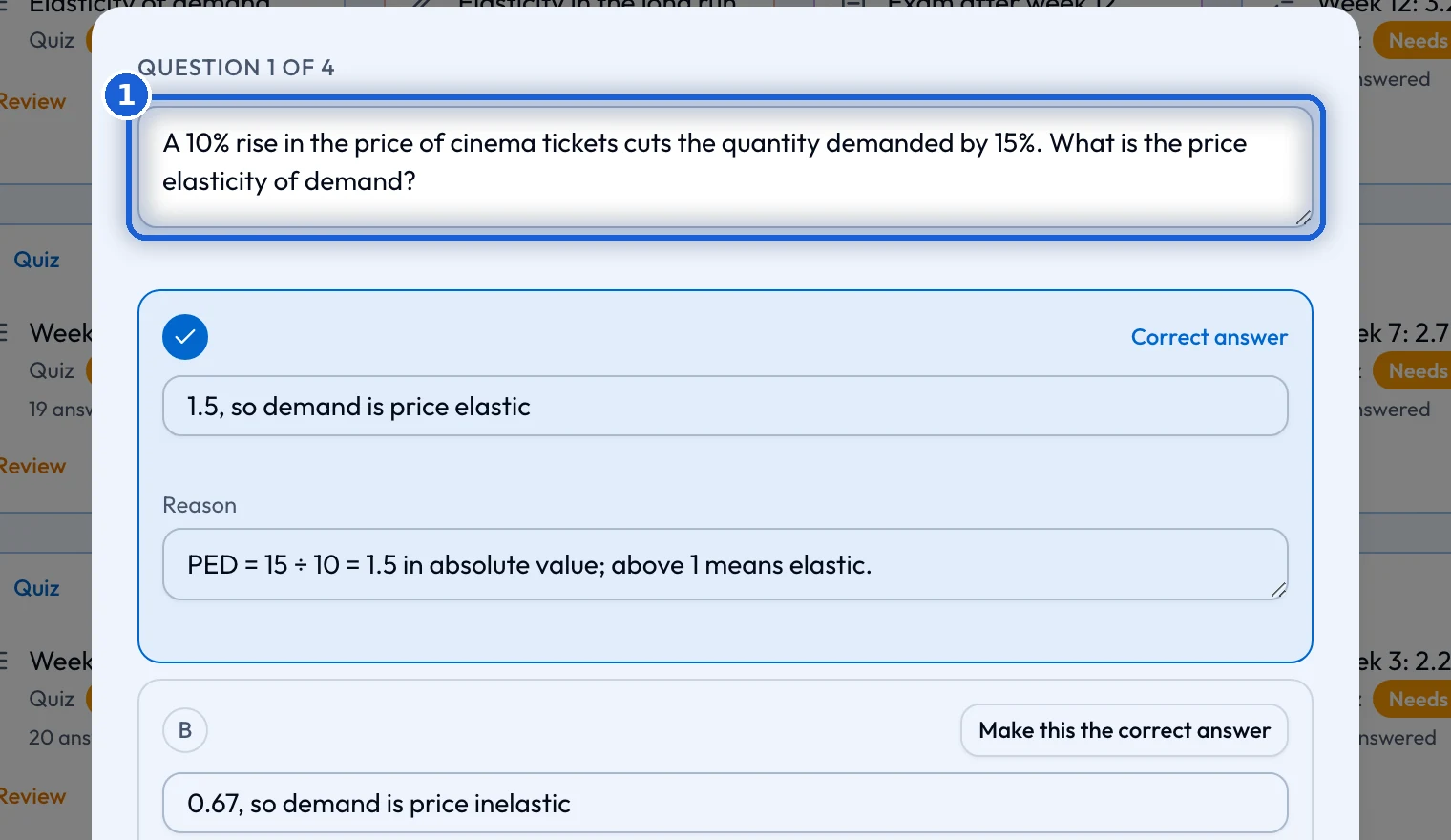
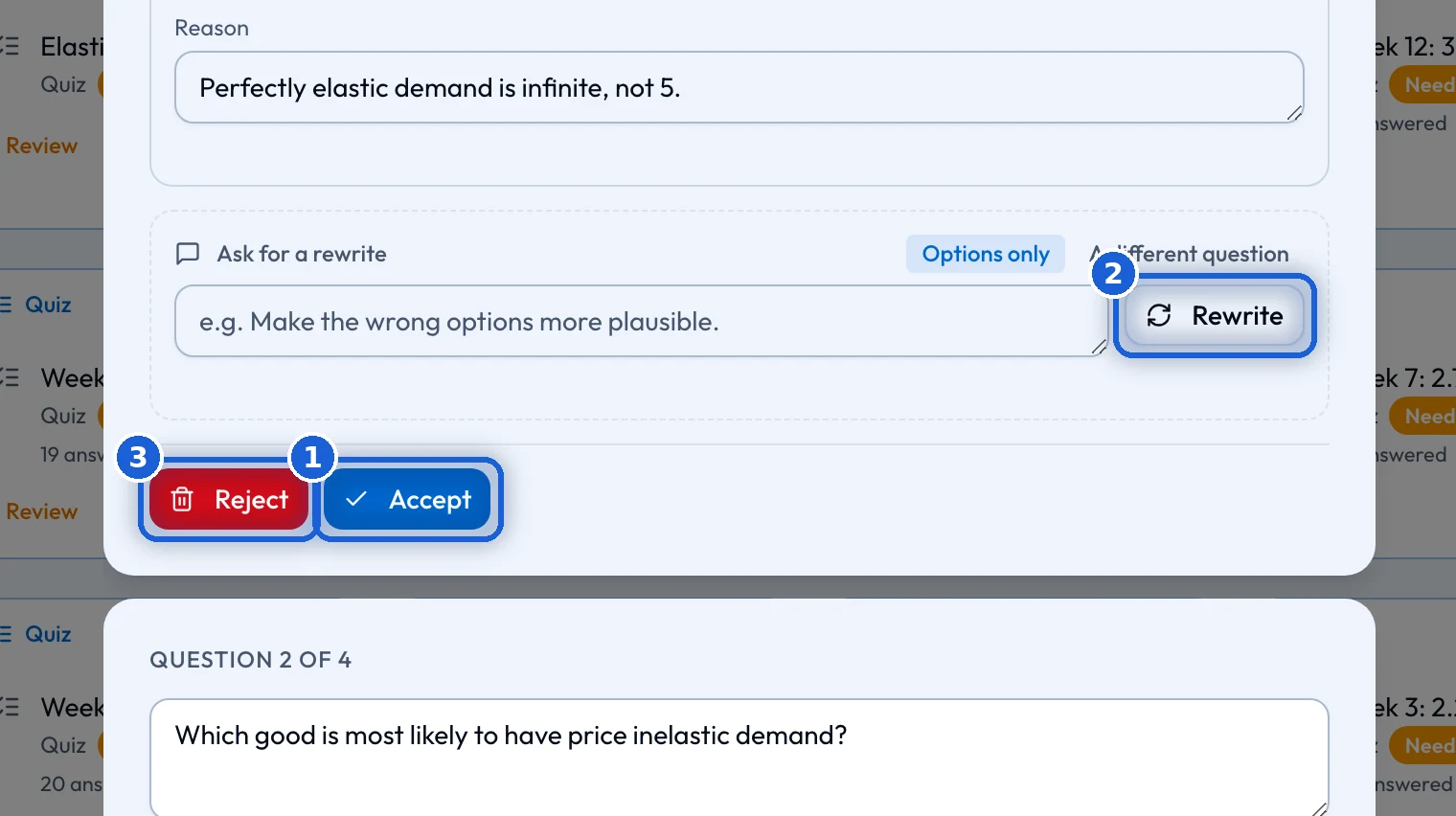
A generated quiz opens in 'Read it through'. For each question you can press 'Accept', 'Rewrite' or 'Reject'. 'Accept all questions' accepts them all at once. 'Generate a new question' adds one more. 'Approve quiz' makes the quiz ready for the class. Until then, no student can see it.
Start it
On the quiz card, 'Place on board' puts the quiz on a whiteboard. 'Start' opens it to the class. 'End' closes it, and 'Reopen' opens it again. The 'More' menu offers a copy, a preview as a student, the quiz settings and a printout of the questions.
A student sees 'Start quiz' while the quiz is open, 'Not open yet' before it opens, 'Retake' while they still have attempts, and 'See results and feedback' once results are visible.
Results
Every hand-in is marked at once. This costs no credits. A student’s results page goes through each question again, with the right answer and the reason. On a board, the 'Activities' button shows an amber badge when something is waiting for you: a generated quiz to approve, or a hand-written one that is not finished.