Students join by email. Paste their addresses when you make the classroom, or add them later from 'Classroom settings'.
By email
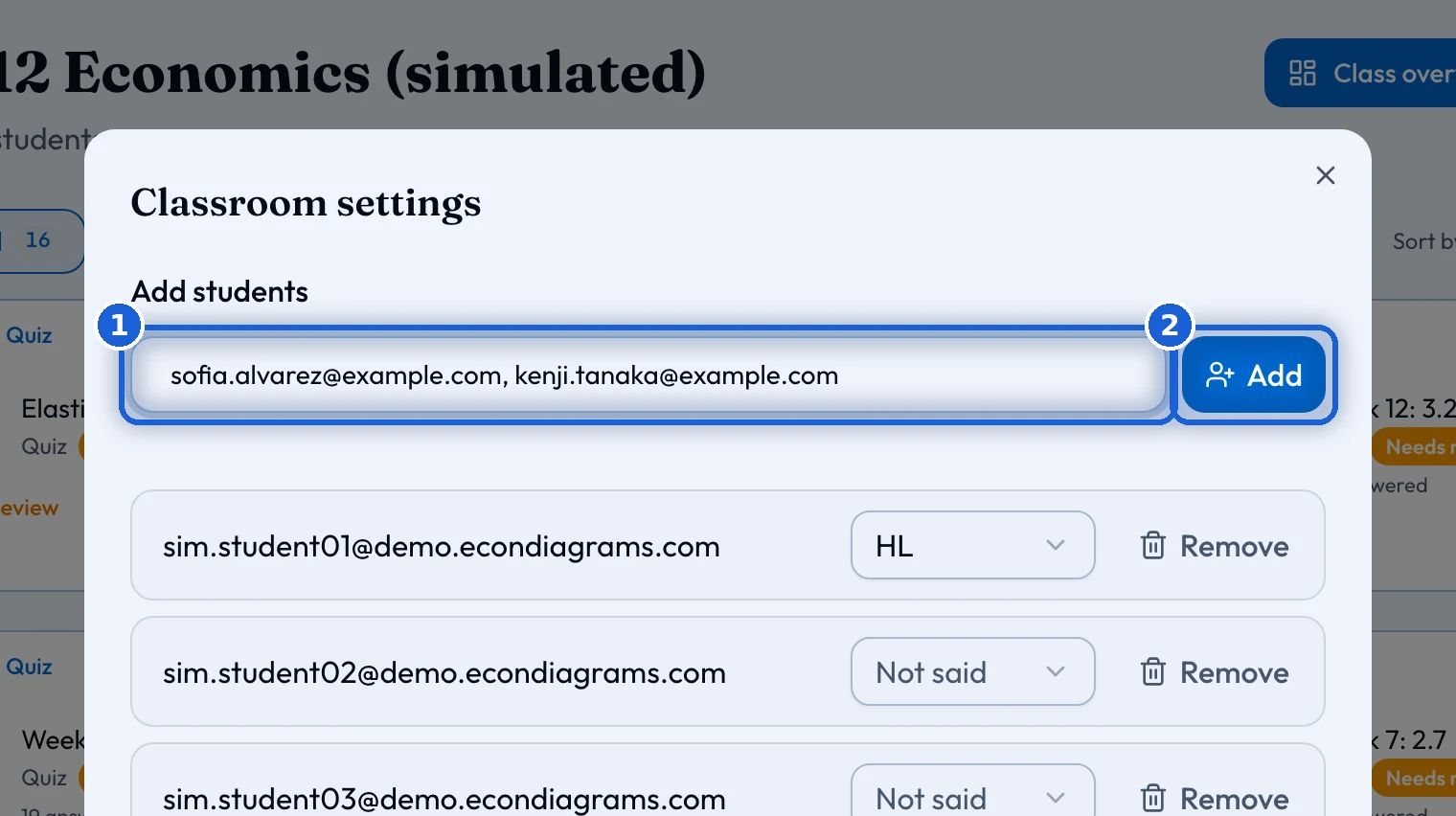
Paste the addresses into 'Students' when you make a new classroom. Or open 'Classroom settings', paste them into 'Add students' and press 'Add'. Each address becomes a row in the list. There is no join link. The email address is the invitation.
A student who already has an account sees the class on their dashboard right away, with any work you have already set. A student without an account gets an email asking them to sign up with that address. The class opens as soon as they are in.
Addresses that are skipped
After you press 'Add', the list says how many students were added. It also lists any address it skipped, with the reason: already in the class, not a student account, or already invited and joining once they sign up.
Each student’s own whiteboard
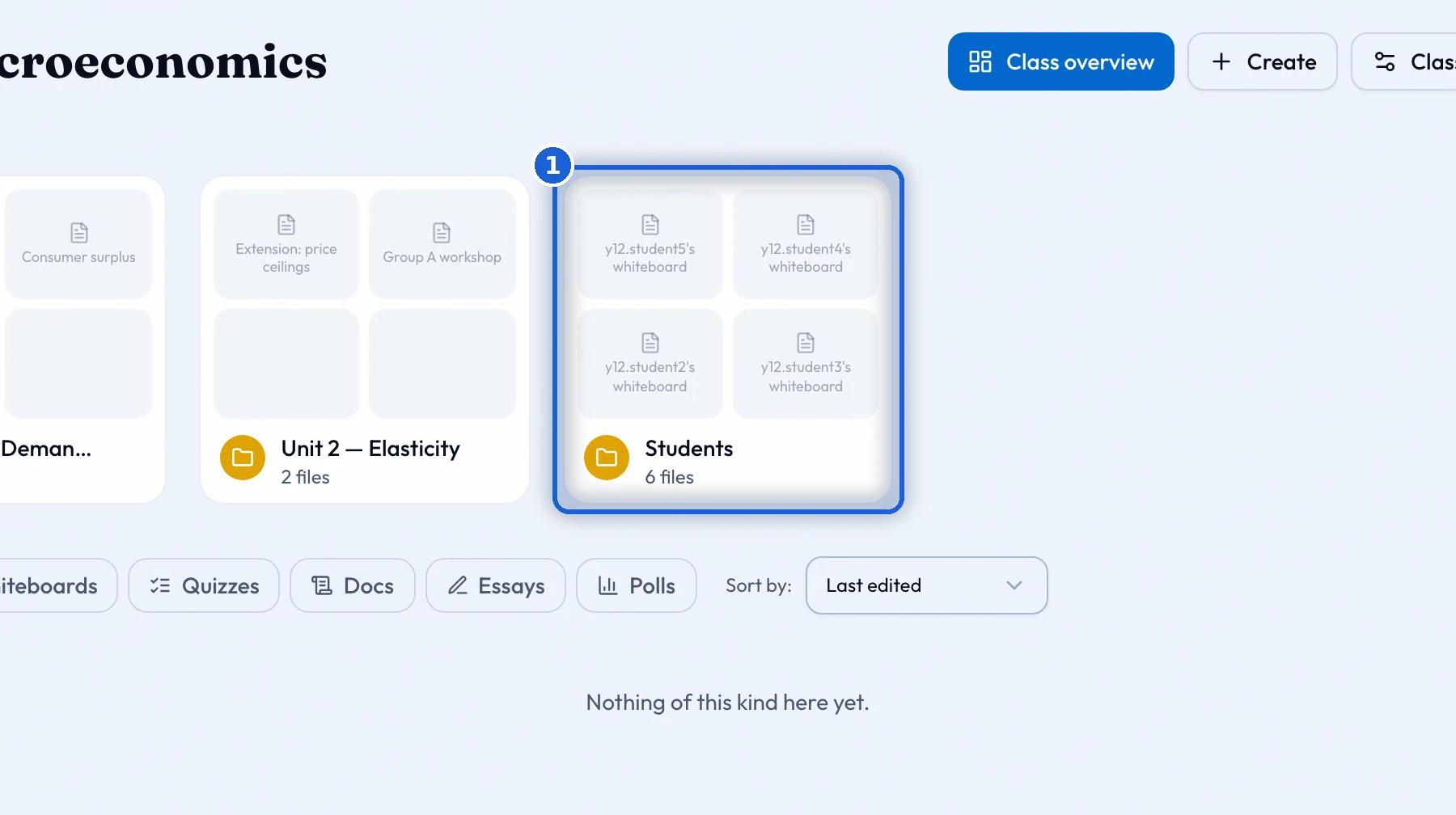
The Students collection holds one whiteboard per student. Only that student and you can see it. It is made when the student joins. If one is ever missing, 'Classroom settings' offers 'Provision missing boards'.
A quiz you set with 'Copy to student boards' lands on each student’s own whiteboard. Work you set for one student only shows in that student’s space.
Levels
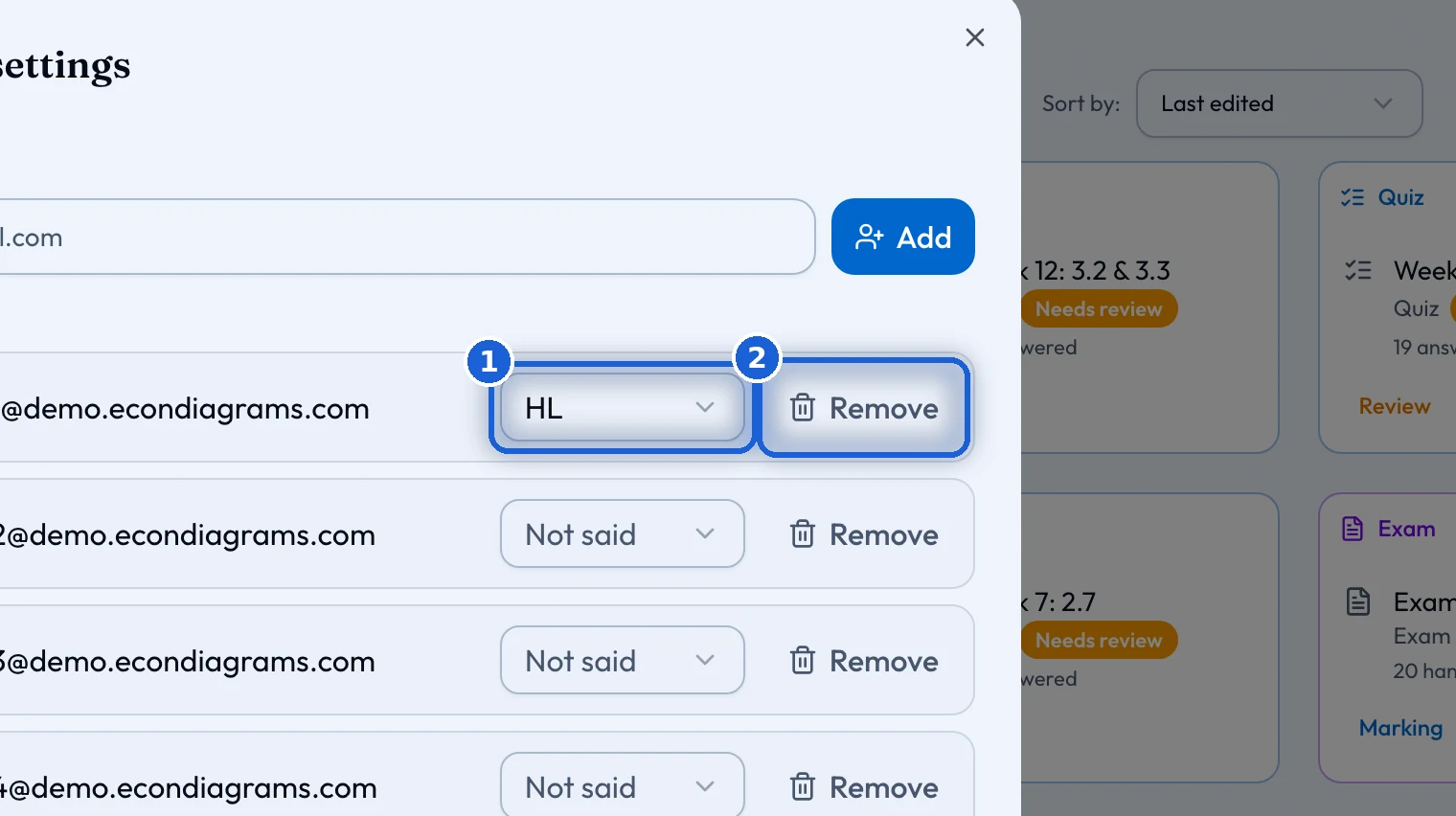
Next to each student in the list is their level: 'SL', 'HL' or 'Not said'. Students choose it when they first sign in. You can change it here. The level decides which topics their practice uses, and whether work set for one level reaches them.