A classroom holds one class: its boards, collections and files, plus one private whiteboard for each student.
What a classroom is
A classroom is the home of one class. It holds the whiteboards you share with the class, the collections you sort them into, and the quizzes, essays, polls and documents you set. It also has a Students folder with one whiteboard per student. Only that student and you can see it.
You can have several classrooms. Each one has its own list of students, its own files and its own class overview.
Make one
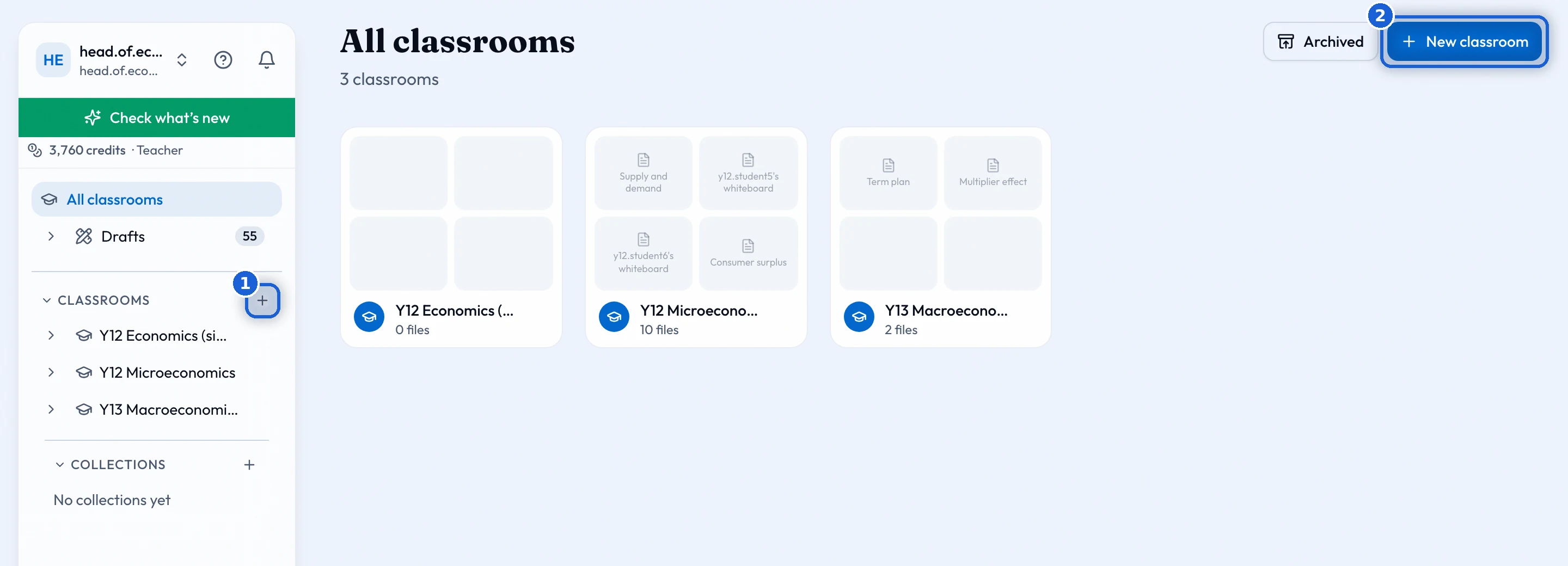
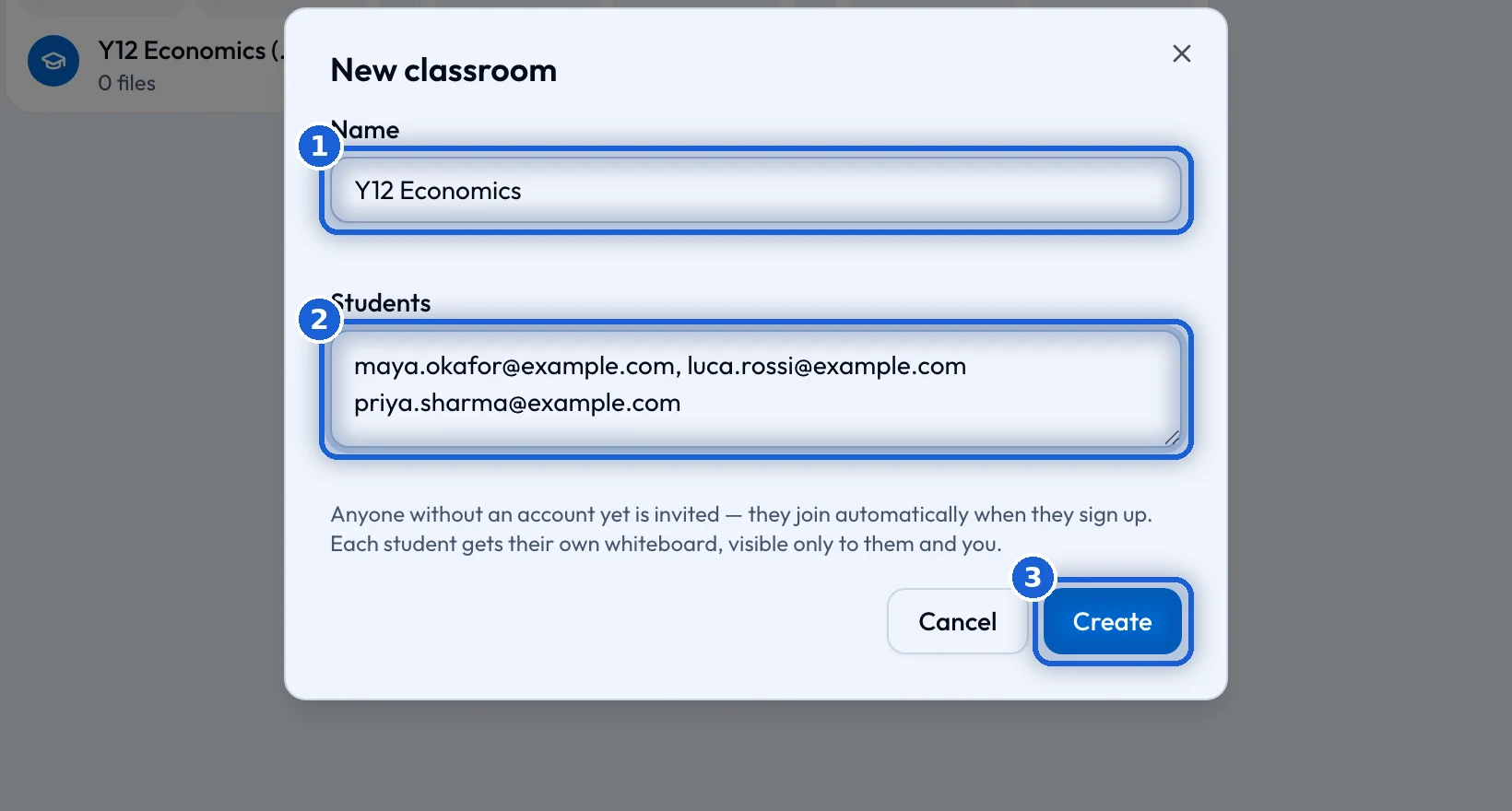
In the sidebar, press the '+' next to 'Classrooms'. Or open 'All classrooms' and press 'New classroom'. A dialog opens. Type a name. If you have your students' email addresses ready, paste them into 'Students'. Separate them with commas, spaces or new lines. Then press 'Create'.
A student who has no account yet gets an email. They join the class as soon as they sign up with that address. Every student gets their own whiteboard the moment they are on the list.
What you get
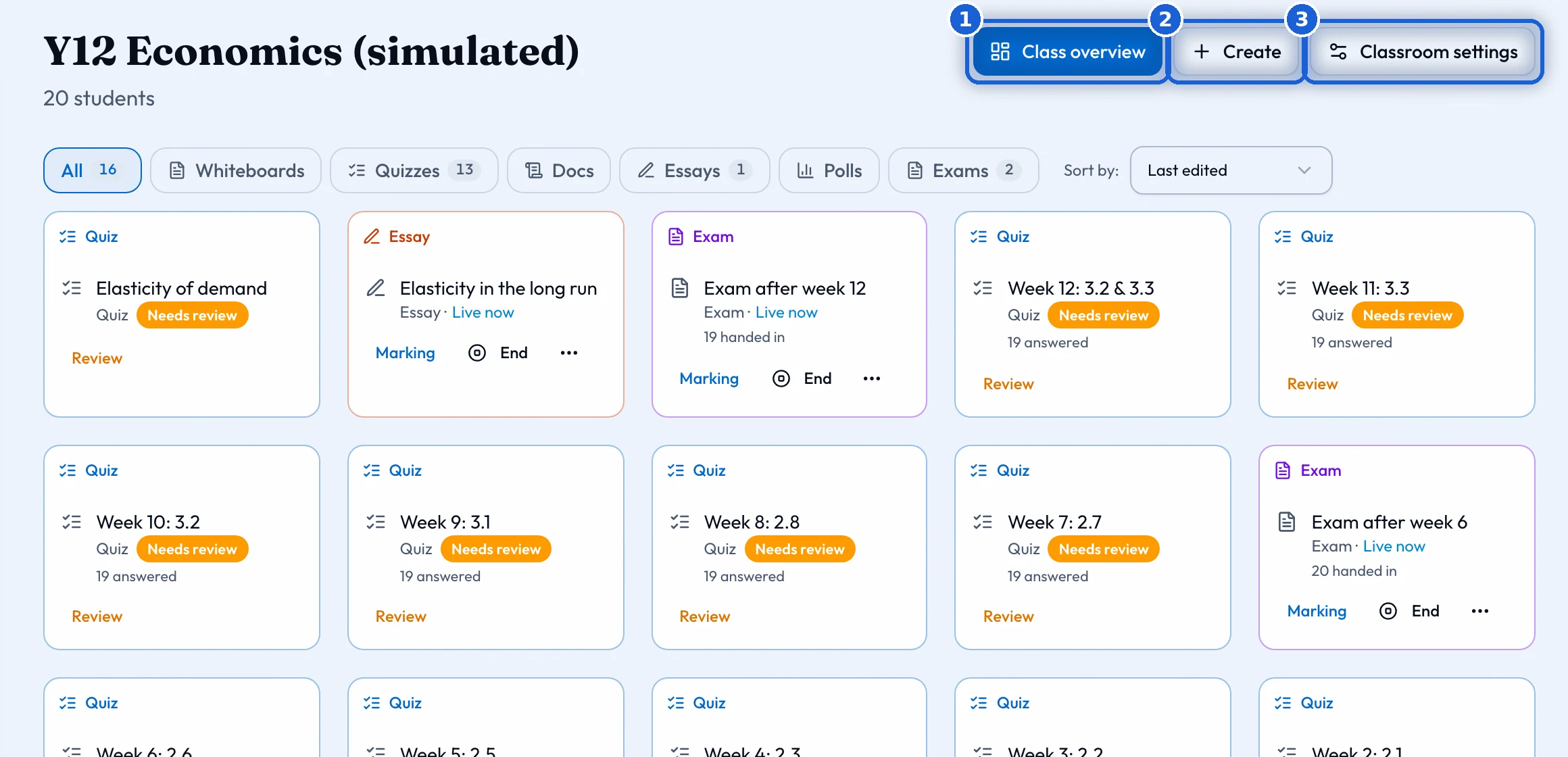
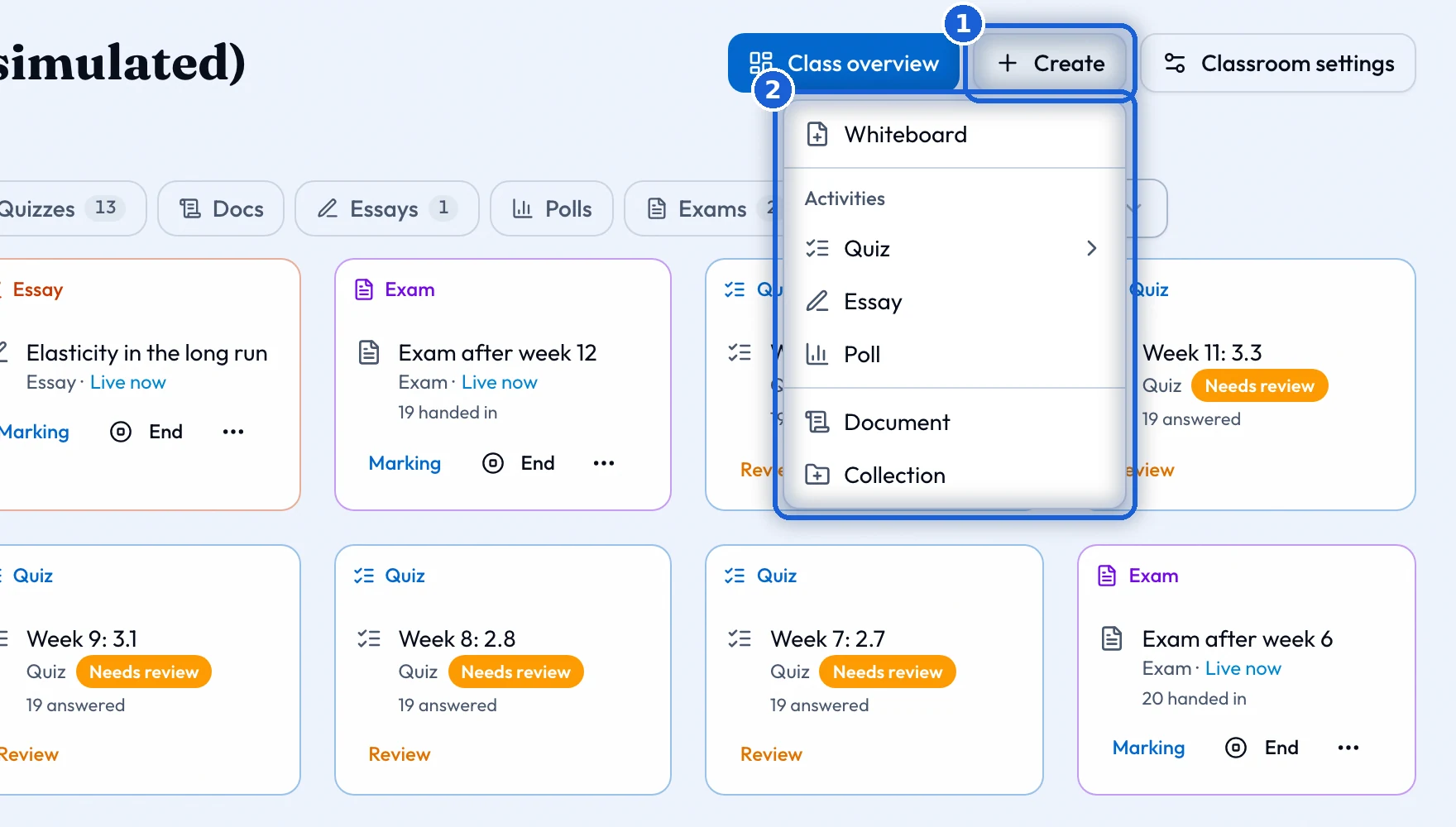
The classroom page shows its files as tiles. Chips above them filter by kind, and a sort order sits next to the chips. The 'Create' menu makes a 'Whiteboard'; a 'Quiz', an 'Essay' or a 'Poll' under 'Activities'; a 'Document'; or a 'Collection'. 'Class overview' opens the dashboard for the class. 'Classroom settings' holds the list of students, the Students collection and the support tiers.
A file stays where you made it: in the classroom, or in one of its collections. The Students folder shows one tile per student. Each tile opens that student’s own space.
How many
A free account can have one classroom with up to twenty students. The Teacher plan has no limit on classrooms and fifty students in each. The School plan is sized by the number of students across the school. Ask for either plan through the pilot form.